 by
Introduction
Video editing is an important skill used to create YouTube videos, Instagram Reels, advertisements, short films, and other digital content. A good video is not only about recording clips. It also needs proper editing, clear sound, attractive visuals, and smooth transitions.
Adobe Premiere Pro is a popular video editing software that helps users create professional-looking videos. It provides different tools for cutting clips, adding music, creating titles, adjusting colors, and improving video quality. Students interested in Video Editing can start by learning the basic tools and features of this software.
1. What Is Adobe Premiere Pro?
Adobe Premiere Pro is a video editing software developed by Adobe. It is used by video editors, YouTubers, filmmakers, and content creators to edit videos for different purposes.
With Premiere Pro, users can combine video clips, add background music, remove unwanted parts, create titles, apply effects, and adjust colors. It also supports different video formats and export settings.
For example, if you record a birthday video, you can use Premiere Pro to arrange the clips, add music, include text, and create a final video. Students looking for a Video Editing Training Institute in Yamuna Vihar can learn these basic editing steps before moving to advanced features.
2. Understanding the Premiere Pro Interface
When you open Adobe Premiere Pro, you will see different sections on the screen. These sections are called panels. Each panel has a different purpose and helps you complete editing tasks.
Some important panels are:
- Project Panel: Stores all your imported videos, images, music, and other files.
- Source Monitor: Helps you watch a video clip before adding it to your project.
- Program Monitor: Shows how your edited video looks.
- Timeline Panel: Allows you to arrange video clips, music, and text in the correct order.
- Tools Panel: Contains tools for cutting, selecting, and moving clips.
- Effects Panel: Provides different video effects, audio effects, and transitions.
Understanding these panels makes editing easier. In Video Editing Classes in Yamuna Vihar, beginners can practice using each panel and learn how to organize their video projects.
3. Important Tools in Adobe Premiere Pro
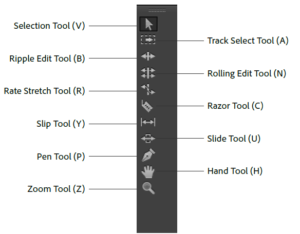
Premiere Pro has many tools that help users edit videos easily. Each tool performs a different task.
Selection Tool (V): This tool helps you select, move, and arrange video clips on the timeline.
Razor Tool (C): It is used to cut video or audio clips into smaller parts. For example, you can remove an unwanted section from a long video.
Ripple Edit Tool (B): This tool helps you shorten or extend a clip while automatically adjusting the following clips to close the gap.
Rolling Edit Tool (N): It changes the ending point of one clip and the starting point of the next clip without changing the total length of the video.
Hand Tool (H): It helps you move around the timeline when working on a long project.
Type Tool (T): It allows you to add text, headings, subtitles, and titles to your video.
Pen Tool (P): It helps create and adjust keyframes for changing effects over time.
Learning these tools helps beginners complete editing work more easily. A Video Editing Centre in Yamuna Vihar can help students understand these tools through regular practice and small editing projects.
4. Useful Features of Adobe Premiere Pro
Apart from basic tools, Premiere Pro offers many features that help improve video quality and make editing more creative.
Timeline Editing: The timeline is where you arrange all your video clips, images, music, and text. You can move clips, cut unwanted parts, and adjust their duration.
Transitions: Transitions help connect two video clips smoothly. For example, Cross Dissolve slowly changes one scene into another, while Dip to Black creates a gradual black screen between scenes.
Keyframe Animation: Keyframes help you create movement in a video. You can use them to zoom in, zoom out, move text, or change the size of an image.
Text and Titles: You can add headings, captions, subtitles, and other text to explain information or introduce a video topic.
Speed Adjustment: This feature allows you to make a video faster or slower. Slow motion is useful for showing important moments, while fast motion can make certain videos more interesting.
Students searching for a Video Editing Training/Institute in Uttam Nagar can benefit from learning these features through practical editing exercises.
5. How to Use Video Effects and Transitions
Video effects and transitions help make videos more attractive. However, both have different uses.
Video effects change the appearance of a clip. For example, brightness and contrast can improve a dark video, while blur effects can soften parts of an image.
Transitions are used when moving from one clip to another. Some common transitions in Premiere Pro include:
- Cross Dissolve
- Dip to Black
- Wipe
- Film Dissolve
You can find these options in the Effects panel and apply them to your clips. A Video Editing Course in Uttam Nagar should include practical exercises so beginners can understand how to use effects and transitions correctly.
6. Audio Editing in Adobe Premiere Pro
Sound is just as important as visuals in a video. If the background music is too loud or the speaker’s voice is unclear, viewers may lose interest.
Premiere Pro provides different audio editing options, such as:
- Volume Control: Helps increase or decrease sound levels.
- Audio Transitions: Makes the beginning and ending of audio smoother.
- Noise Reduction: Helps reduce unwanted background sounds using supported audio effects.
- Background Music: Allows you to add music to your video.
- Audio Mixing: Helps balance dialogue, music, and sound effects.
For example, while editing an interview, you can make the speaker’s voice clearer and add soft background music. Learning these features in Video Editing Classes in Uttam Nagar can help students improve the sound quality of their videos.
7. Color Correction and Color Grading
Have you ever noticed that some videos look bright, colorful, and professional? This is often because of proper color correction and color grading.
Color Correction means fixing the colors of a video. It helps adjust brightness, contrast, white balance, and saturation so the footage looks natural.
Color Grading means giving a video a particular look or style. For example, warm colors can create a comfortable feeling, while cool colors can give a dramatic appearance.
Premiere Pro provides a feature called the Lumetri Color Panel, which helps users make these adjustments.
Students attending a Video Editing Centre in Uttam Nagar can practice these settings to understand how colors change the overall appearance of a video.
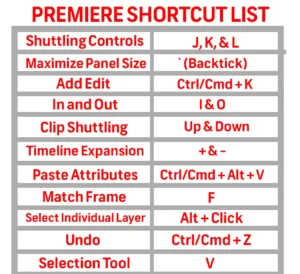
8. Useful Keyboard Shortcuts for Beginners
Keyboard shortcuts help you complete editing tasks faster. Instead of selecting every option from the menu, you can use a few keys to perform common actions.
Here are some useful shortcuts for Windows:
| Shortcut | Function |
| V | Selection Tool |
| C | Razor Tool |
| Spacebar | Play or Pause |
| Ctrl + Z | Undo |
| Ctrl + S | Save Project |
| I | Set In Point |
| O | Set Out Point |
| M | Add Marker |
| Ctrl + K | Add Edit |
Beginners can practice these shortcuts while editing small videos. Students joining a Video Editing Coaching Centre in Yamuna Vihar can use them regularly to improve their editing speed.
9. Tips for Beginners Learning Premiere Pro
If you are new to video editing, you do not need to learn every feature at once. Start with the basics and practice regularly.
Here are some simple tips:
- Start by editing short video clips.
- Learn how to import and organize files.
- Practice cutting, trimming, and joining clips.
- Add background music and adjust sound levels.
- Try different transitions and basic effects.
- Learn how to add text and titles.
- Practice color correction.
- Create small projects to improve your skills.
- Learn how to export videos in the correct format.
When choosing a Video Editing Coaching Centre in Uttam Nagar, students should look for practical training and opportunities to work on real editing projects. A Video Editing Coaching Institute in Uttam Nagar that includes regular assignments can also help students build a portfolio of their work.
Conclusion
Adobe Premiere Pro is a useful software for anyone interested in learning video editing. Its tools and features help users cut clips, add music, create titles, apply effects, and improve video quality.
Beginners should first understand the interface and basic tools before learning advanced editing techniques. Regular practice and small projects can help students become more confident and improve their creative skills. These skills can be useful for creating YouTube videos, social media content, advertisements, and other professional videos.Visit us